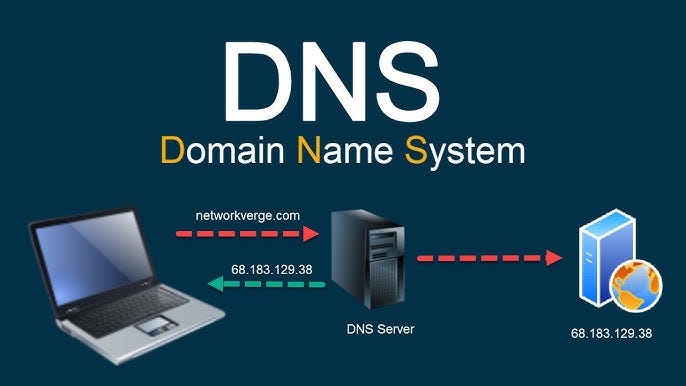
Every time you type a website address, your device consults a DNS (Domain Name System) server to find the corresponding IP address — think of it as the internet’s phonebook. Without this lookup, your browser has no idea where to send you.
The problem: by default, your ISP assigns you their own DNS servers. These resolve addresses correctly, but they do nothing to stop you from landing on phishing pages, malware-distributing sites, or inappropriate content. They also log your entire browsing activity.
Secure DNS servers solve this by filtering dangerous domains before your device ever makes a connection. The protection is immediate, transparent, and free — and takes under two minutes to configure.
Key insight: Switching to a secure DNS server is one of the highest-impact, lowest-effort security upgrades available for any home network or business. It protects every device on the network simultaneously when configured at the router level.
Best Secure DNS Servers in 2026
All servers below are free, require no registration, and are compatible with all major operating systems and routers.
Cloudflare DNS — Security (Editor’s Pick)
Primary: 1.1.1.2 | Secondary: 1.0.0.2
Blocks malware and phishing with the fastest average response time globally. The best balance of speed and protection for most users. Cloudflare does not sell your data and commits to a strict no-log policy.
Cloudflare DNS — Family
Primary: 1.1.1.3 | Secondary: 1.0.0.3
Adds automatic adult content filtering on top of full malware and phishing protection. Ideal for households with children — no account or dashboard needed.
Quad9
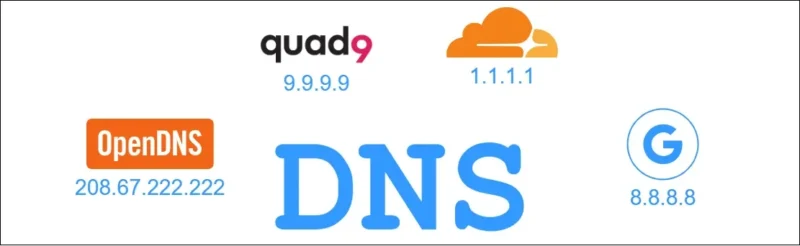
Primary: 9.9.9.9 | Secondary: 149.112.112.112
Operated by a non-profit organization. Blocks known malicious domains using threat intelligence from over 20 security partners. Strong privacy policy — no data sold, no accounts required.
AgnerDNS
Primary: 45.90.28.0 | Secondary: 45.90.30.0
Blocks ads, trackers, malware, and gambling sites at the network level. The best choice for users who want network-wide ad blocking without installing a browser extension or third-party app.
OpenDNS FamilyShield
Primary: 208.67.222.123 | Secondary: 208.67.220.123
Automatic adult content and malware blocking with no account required. Operated by Cisco — enterprise-grade infrastructure with consumer simplicity.
OpenDNS Home
Primary: 208.67.222.222 | Secondary: 208.67.220.220
Full filtering customization via a free dashboard. Choose exactly which content categories to block on a per-device basis — the best option for parents who want precise control without paying for a premium service.
CleanBrowsing Family Filter
Primary: 185.228.168.168 | Secondary: 185.228.169.168
Blocks adult content, mixed-content sites, phishing, and malware. Also enforces safe search on Google, Bing, and YouTube, making it one of the most comprehensive free family filters available.
Quick Comparison
| DNS Server | Blocks Malware | Blocks Adult Content | Blocks Ads | No-Log Policy | Speed |
|---|---|---|---|---|---|
| Cloudflare 1.1.1.2 | Yes | No | No | Yes | Excellent |
| Cloudflare 1.1.1.3 | Yes | Yes | No | Yes | Excellent |
| Quad9 | Yes | No | No | Yes | Very good |
| AgnerDNS | Yes | Optional | Yes | Yes | Good |
| OpenDNS FamilyShield | Yes | Yes | No | No | Very good |
| OpenDNS Home | Yes | Customizable | No | No | Very good |
| CleanBrowsing Family | Yes | Yes | No | Yes | Good |
Which DNS Server Should You Choose?
For maximum security: Use Cloudflare 1.1.1.2 or Quad9. Both have excellent threat intelligence feeds and near-zero latency regardless of your location.
For family households: Use Cloudflare 1.1.1.3 or OpenDNS FamilyShield for automatic, zero-configuration adult content filtering that works the moment you save the settings.
To block ads network-wide: Use AgnerDNS to eliminate ads and trackers across every device on your network — including smart TVs and game consoles where browser extensions are not an option.
For parental control power users: Use OpenDNS Home with a free account to customize exactly which content categories are blocked, and review browsing activity through the dashboard.
How to Configure a Secure DNS Server on Any Device
Changes take effect immediately and are fully reversible. Simply restore “Automatic” DNS to return to your ISP’s defaults at any time.
Windows
- Open Control Panel → Network and Internet → Network and Sharing Center
- Click Change adapter settings in the left sidebar
- Right-click your active connection (Wi-Fi or Ethernet) and select Properties
- Select Internet Protocol Version 4 (TCP/IPv4) and click Properties
- Choose Use the following DNS server addresses and enter your primary and secondary DNS
- Click OK to save — protection is active immediately
macOS
- Click the Apple menu and go to System Settings → Network
- Select your active connection (Wi-Fi or Ethernet) from the list
- Click Details… then navigate to the DNS tab
- Click + and add your chosen DNS addresses. Remove old entries if preferred
- Click OK then Apply — changes take effect immediately
Android
- Go to Settings → Network & Internet → Wi-Fi
- Long-press your connected network and tap Modify network
- Expand Advanced options and change IP settings to Static
- Fill in DNS 1 and DNS 2 with your chosen server addresses
- Tap Save — note that you may need to repeat this for each Wi-Fi network you join
iPhone / iPad (iOS)
- Go to Settings → Wi-Fi and tap the ⓘ icon next to your connected network
- Scroll down to Configure DNS and tap it
- Switch from Automatic to Manual
- Tap Add Server and enter your primary DNS address, then repeat for the secondary
- Tap Save in the top-right corner
Router — Protect Every Device at Once (Recommended)
- Access your router admin panel — typically at 192.168.1.1 or 192.168.0.1 in any browser
- Log in with your admin credentials (often printed on the router label)
- Navigate to WAN settings, Internet setup, or DNS settings — the exact path varies by router brand
- Enter your preferred addresses in the Primary DNS and Secondary DNS fields
- Save and restart the router — every device on your network is now protected automatically
Pro tip: Configuring DNS at the router level protects every device on your network — including smart TVs, game consoles, and IoT devices that cannot be individually configured. This is the recommended approach for families and small businesses.
Frequently Asked Questions
Will switching DNS slow down my internet? In most cases, no — and it can actually speed things up. Cloudflare’s DNS (1.1.1.2) is consistently ranked among the fastest resolvers in the world. The difference compared to ISP DNS is negligible for typical browsing.
Is changing DNS legal? Yes, in virtually all countries. You have the right to choose which DNS server resolves your queries. Using a third-party DNS is standard practice for privacy and security-conscious users worldwide.
Can secure DNS replace antivirus software? No — DNS filtering is a complementary layer, not a replacement. It blocks connections to known malicious domains, but it cannot detect malware already on your device or threats delivered through encrypted channels. Use both for comprehensive protection.
Does a VPN make DNS settings irrelevant? When a VPN is active, it typically routes DNS queries through its own servers. Some VPNs allow you to specify a custom DNS. If you use both, check your VPN’s documentation to confirm your preferred DNS is actually being used.
How do I test if my new DNS is working? Visit 1.1.1.1/help (for Cloudflare) or use any DNS leak test site to verify which server is resolving your queries. You can also attempt to visit a known test phishing page provided by your DNS provider to confirm blocking is active.
What happens if the primary DNS server goes down? That is why every configuration uses two addresses — a primary and a secondary. If the primary is unreachable, your device automatically falls back to the secondary with no interruption to your connection.
Bottom Line
Switching to a secure DNS server is one of the simplest, most effective ways to improve your online security — at no cost, with no software to install and no ongoing maintenance. Whether your priority is blocking malware, filtering adult content for your family, or eliminating intrusive ads at the network level, there is a DNS server built for your exact use case.
For most users, Cloudflare 1.1.1.2 is the best starting point. Families should consider Cloudflare 1.1.1.3 or OpenDNS FamilyShield. And for router-level ad blocking, AgnerDNS delivers results no browser extension can match.
The setup takes two minutes. The protection is permanent.